Turn PNG and JPG into WebP
Smaller images, same look. Drop your files below and get WebP back in seconds. Nothing is uploaded: the conversion runs inside your browser.


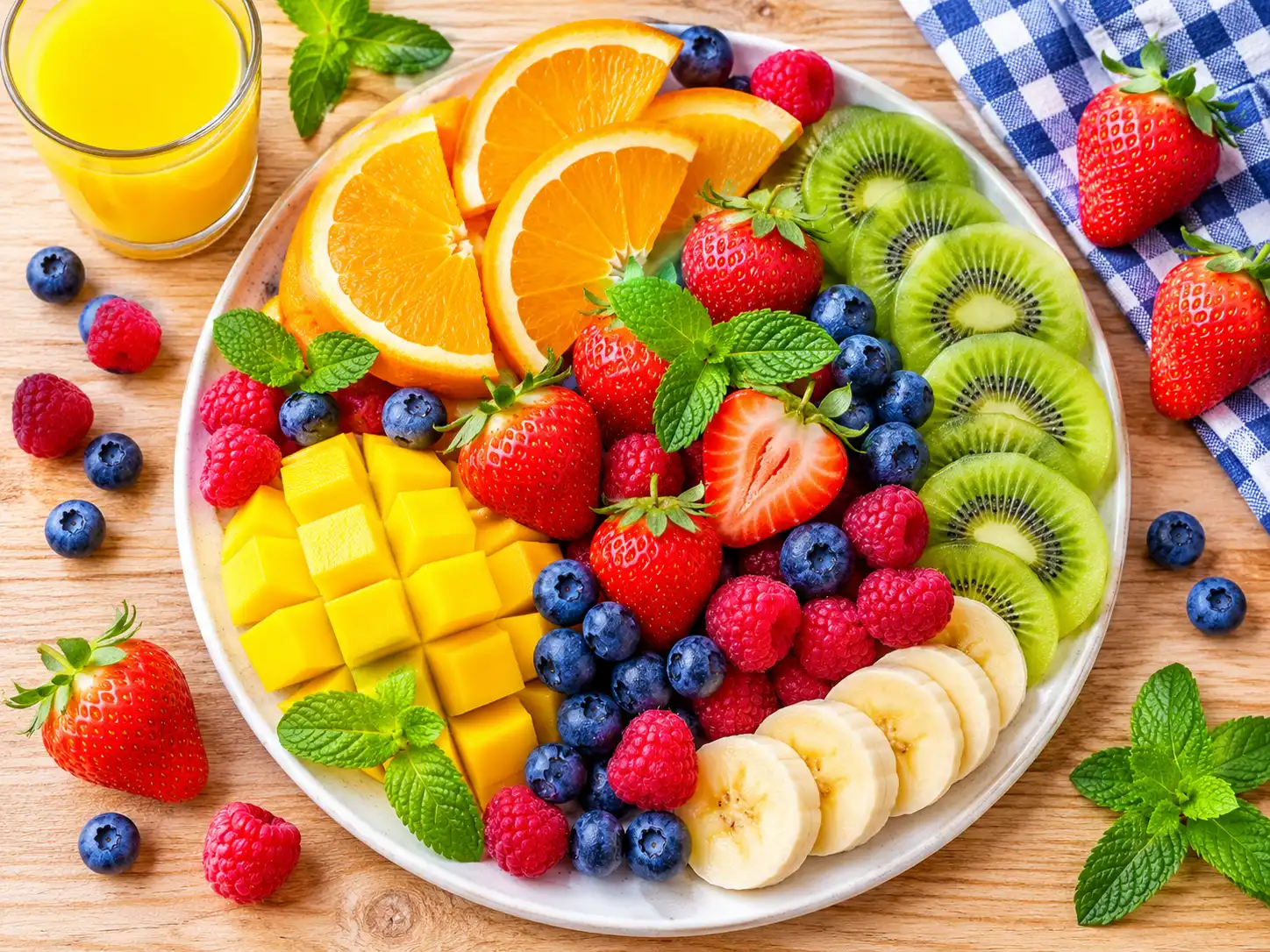 WebP · Smaller
PNG / JPG · Original
Drag & drop your images here
Supports high-resolution PNG, JPG, JPEG, and WEBP. You can add many at once.
Files processed with this tool
Why switch your images to WebP
Reduce file size, preserve transparency, and ship faster-loading images in one workspace.
Lighter pages
WebP files are usually much smaller than the PNG or JPG they replace, so pages load faster on slow mobile connections.
Transparency stays
PNG images with see-through backgrounds keep their transparency after conversion. JPG files stay opaque, as they were.
Works everywhere you publish
Current versions of Chrome, Safari, Firefox and Edge all display WebP, so you can use it on any modern site.
Convert to WebP in seconds.
Add a PNG or JPG image and get a smaller WebP file right away. Set the quality you want and export.
- No complicated settings
- Live preview of the result
- File size shown before you export
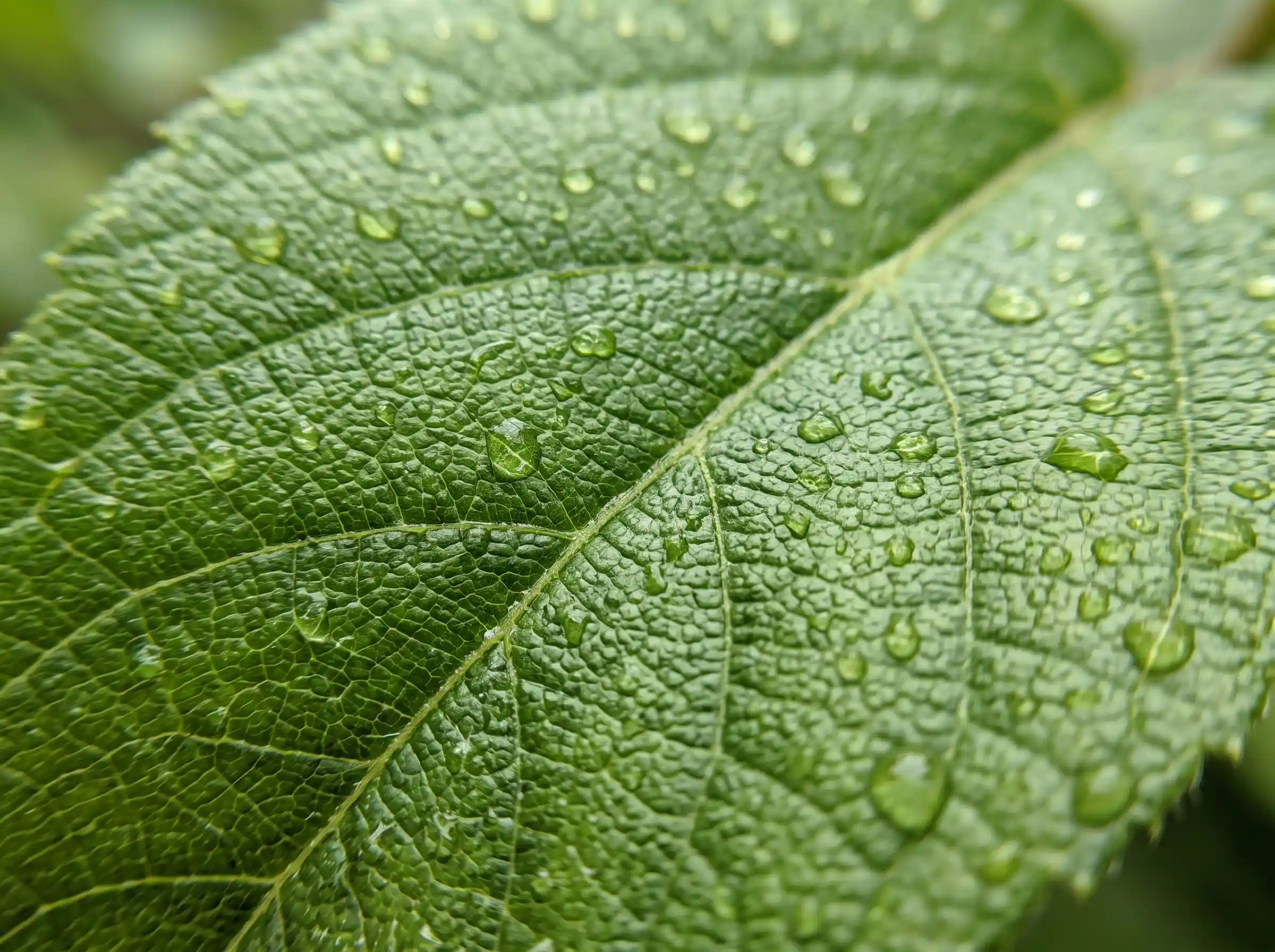 WebP · Smaller
PNG / JPG · Original
PNG, JPG or WebP?
| Format | Best for | Transparency | File size |
|---|---|---|---|
| PNG | Logos, screenshots, sharp edges | Yes | Large |
| JPG | Photographs | No | Medium |
| WebP | Both of the above, on the web | Yes | Small |
Frequently asked questions
Everything you need to know about converting images to WebP, supported formats, and how your images are handled.
No. This tool works entirely in your browser, and your images are not uploaded to our servers.
Your images stay on your device while they are converted to WebP.
Lossy gives smaller files by removing some detail, while lossless keeps every pixel exactly the same.
Lossy is a good choice for photos and web pages, where small changes are rarely noticeable. Lossless suits images where every detail must stay exact, but the file will usually be larger.
Yes. WebP supports transparent backgrounds, so transparent PNG files stay transparent after conversion.
If you don't need transparency, you can also choose to skip transparent images when you convert a batch of files.
Yes. You can compare the original, the difference map and the WebP result, then export the file to your device.
The new file size is shown before you export, so you can be sure you're happy with the result before you save it.
You can add PNG and JPG (JPEG) images, and the exported file is in .webp format.
Very large images may take longer to convert, depending on your device and browser.
Ratings & reviews
Feedback from creators who tested this tool.
No reviews yet
Tried converting images to WebP? Be the first to share how your results looked.